


Page 42 - Digital_Kids_3
P. 42
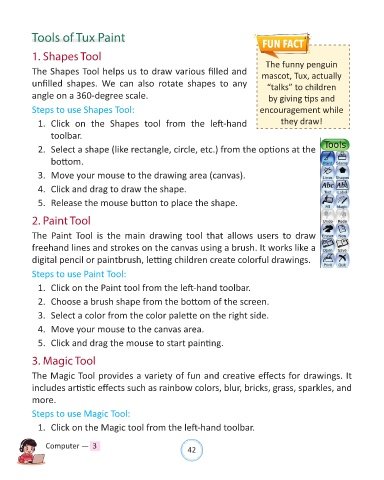
Tools of Tux Paint


            1. Shapes Tool                                                                 The funny penguin


            The Shapes Tool helps us to draw various filled and                          mascot, Tux, actually
            unfilled  shapes.  We  can  also  rotate  shapes  to  any                      “talks” to children

            angle on a 360-degree scale.                                                    by giving tips and

            Steps to use Shapes Tool:                                                    encouragement while
              1.  Click  on  the  Shapes  tool  from  the  left-hand                            they draw!

                  toolbar.

              2.  Select a shape (like rectangle, circle, etc.) from the options at the
                  bottom.


              3.  Move your mouse to the drawing area (canvas).
              4.  Click and drag to draw the shape.

              5.  Release the mouse button to place the shape.


            2. Paint Tool

            The  Paint  Tool  is  the  main  drawing  tool  that  allows  users  to  draw

            freehand lines and strokes on the canvas using a brush. It works like a
            digital pencil or paintbrush, letting children create colorful drawings.

            Steps to use Paint Tool:

              1.  Click on the Paint tool from the left-hand toolbar.

              2.  Choose a brush shape from the bottom of the screen.

              3.  Select a color from the color palette on the right side.

              4.  Move your mouse to the canvas area.

              5.  Click and drag the mouse to start painting.

            3. Magic Tool


            The Magic Tool provides a variety of fun and creative effects for drawings. It
            includes artistic effects such as rainbow colors, blur, bricks, grass, sparkles, and

            more.

            Steps to use Magic Tool:

              1.  Click on the Magic tool from the left-hand toolbar.


                Computer —  3                                   42

