


Page 56 - Digital_Kids_2
P. 56
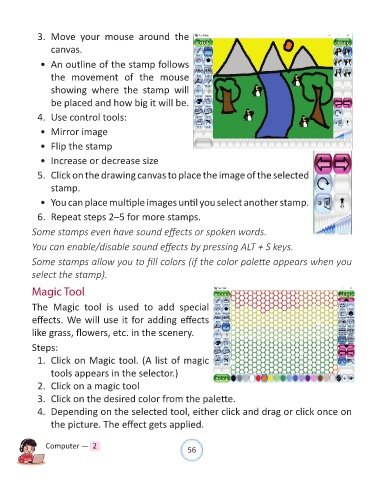
3.  Move  your  mouse  around  the

                  canvas.

              •  An outline of the stamp follows

                  the  movement  of  the  mouse
                  showing  where  the  stamp  will

                  be placed and how big it will be.

              4.  Use control tools:

              •  Mirror image

              •  Flip the stamp

              •  Increase or decrease size

              5.  Click on the drawing canvas to place the image of the selected

                  stamp.

              •  You can place multiple images until you select another stamp.

              6.  Repeat steps 2–5 for more stamps.


            Some stamps even have sound effects or spoken words.

            You can enable/disable sound effects by pressing ALT + S keys.

            Some stamps allow you to fill colors (if the color palette appears when you
            select the stamp).


            Magic Tool

            The  Magic  tool  is  used  to  add  special

            effects. We will use it for adding effects

            like grass, flowers, etc. in the scenery.

            Steps:
              1.  Click on Magic tool. (A list of magic

                  tools appears in the selector.)

              2.  Click on a magic tool
              3.  Click on the desired color from the palette.

              4.  Depending on the selected tool, either click and drag or click once on

                  the picture. The effect gets applied.


                Computer —  2                                   56

