


Page 72 - Digital_Kids_5
P. 72
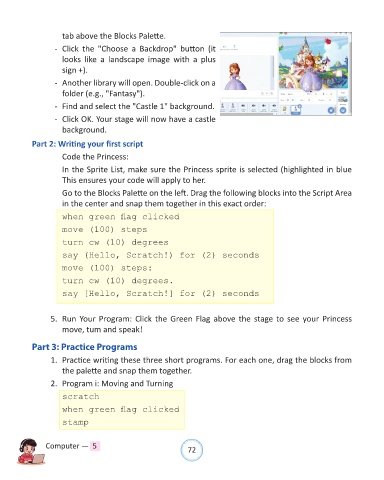
tab above the Blocks Palette.

                   -  Click  the  "Choose  a  Backdrop"  button  (it
                      looks  like  a  landscape  image  with  a  plus
                      sign +).

                   -  Another library will open. Double-click on a
                      folder (e.g., "Fantasy").

                   -  Find and select the "Castle 1" background.

                   -  Click OK. Your stage will now have a castle
                      background.

            Part 2: Writing your first script

                      Code the Princess:
                      In the Sprite List, make sure the Princess sprite is selected (highlighted in blue

                      This ensures your code will apply to her.
                      Go to the Blocks Palette on the left. Drag the following blocks into the Script Area

                      in the center and snap them together in this exact order:

                     when green flag clicked

                     move (100) steps
                     turn cw (10) degrees

                     say (Hello, Scratch!) for (2) seconds

                     move (100) steps:

                     turn cw (10) degrees.
                     say [Hello, Scratch!] for (2) seconds


                  5.  Run Your Program: Click the Green Flag above the stage to see your Princess
                      move, tum and speak!


            Part 3: Practice Programs

                  1.  Practice writing these three short programs. For each one, drag the blocks from
                      the palette and snap them together.

                  2.  Program i: Moving and Turning

                     scratch

                     when green flag clicked
                     stamp


                Computer —  5                                   72

