


Page 71 - Digital_Kids_5
P. 71
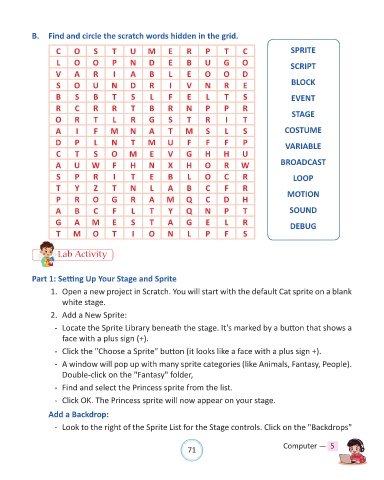
B.  Find and circle the scratch words hidden in the grid.


                    C     O      S     T     U     M      E     R     P      T     C               SPRITE
                    L     O     O      P     N     D      E     B     U      G     O               SCRIPT
                    V     A      R     I     A     B      L     E     O     O      D

                    S     O     U      N     D     R      I     V     N      R     E               BLOCK
                    B     S      B     T     S      L     F     E      L     T     S               EVENT

                    R     C      R     R     T     B      R     N     P      P     R
                    O     R      T     L     R     G      S     T     R      I     T               STAGE
                    A      I     F    M      N     A      T     M     S      L     S             COSTUME

                    D     P      L     N     T     M      U     F      F     F     P             VARIABLE
                    C     T      S     O     M      E     V     G     H      H     U

                    A     U     W      F     H     N      X     H     O      R    W             BROADCAST
                    S     P      R     I     T      E     B     L     O      C     R                LOOP
                    T     Y      Z     T     N      L     A     B     C      F     R

                    P     R     O      G     R     A     M      Q     C      D     H              MOTION
                    A     B      C     F     L      T     Y     Q     N      P     T               SOUND

                    G     A     M      E     S      T     A     G     E      L     R               DEBUG
                    T     M     O      T      I    O      N     L     P      F     S


                     Lab Activity


            Part 1: Setting Up Your Stage and Sprite

                  1.  Open a new project in Scratch. You will start with the default Cat sprite on a blank
                      white stage.

                  2.  Add a New Sprite:

                   -  Locate the Sprite Library beneath the stage. It's marked by a button that shows a
                      face with a plus sign (+).

                   -  Click the "Choose a Sprite" button (it looks like a face with a plus sign +).

                   -  A window will pop up with many sprite categories (like Animals, Fantasy, People).
                      Double-click on the "Fantasy" folder,
                   -  Find and select the Princess sprite from the list.

                   -  Click OK. The Princess sprite will now appear on your stage.

                 Add a Backdrop:

                   -  Look to the right of the Sprite List for the Stage controls. Click on the "Backdrops"


                                                                71                               Computer —  5

