


Page 66 - Digital_Kids_5
P. 66
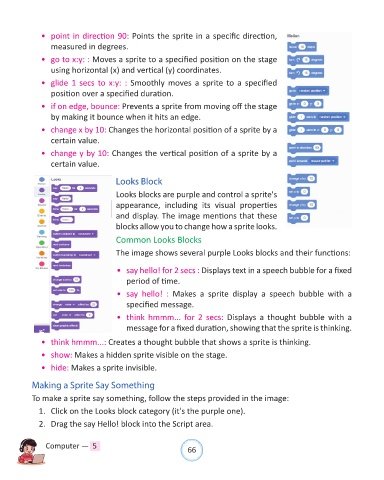
•  point in direction 90: Points the sprite in a specific direction,
                  measured in degrees.

              •  go to x:y: : Moves a sprite to a specified position on the stage
                  using horizontal (x) and vertical (y) coordinates.

              •  glide 1 secs to x:y: : Smoothly  moves a sprite to a specified
                  position over a specified duration.

              •  if on edge, bounce: Prevents a sprite from moving off the stage
                  by making it bounce when it hits an edge.

              •  change x by 10: Changes the horizontal position of a sprite by a
                  certain value.

              •  change y by 10: Changes the vertical position of a sprite by a
                  certain value.


                                        Looks Block

                                        Looks blocks are purple and control a sprite's
                                        appearance,  including  its  visual  properties
                                        and display. The image mentions that these
                                        blocks allow you to change how a sprite looks.

                                        Common Looks Blocks

                                        The image shows several purple Looks blocks and their functions:


                                         •  say hello! for 2 secs : Displays text in a speech bubble for a fixed
                                            period of time.

                                         •  say  hello!  :  Makes  a  sprite  display  a  speech  bubble  with  a
                                            specified message.

                                         •  think  hmmm...  for  2  secs:  Displays  a  thought  bubble  with  a
                                            message for a fixed duration, showing that the sprite is thinking.

              •  think hmmm...: Creates a thought bubble that shows a sprite is thinking.

              •  show: Makes a hidden sprite visible on the stage.
              •  hide: Makes a sprite invisible.


            Making a Sprite Say Something

            To make a sprite say something, follow the steps provided in the image:
              1.  Click on the Looks block category (it's the purple one).

              2.  Drag the say Hello! block into the Script area.


                Computer —  5                                   66

