


Page 20 - Digital_Kids_4
P. 20
5.  Name Your Folder (a new folder will appear with the name New Folder. Type

                  the name you want, e.g., School Work, and press Enter).

            Opening a File or Folder


            To open a file or folder, move the mouse pointer to that file or folder and double-
            click on it. The file or folder will open.


            Deleting a File or Folder

              1.  Go to the place where the file or folder is saved (Desktop or File Explorer).

              2.  Click once on the file or folder to select it.
              3.  Press the Delete key on your keyboard.

                  • Or, right-click on it and choose Delete from the menu.


            Moving a File or Folder

              1.  Find the file or folder (e.g., Desktop or Documents).

              2.  Click and Hold (click on the file/folder and hold down the mouse button).

              3.  Drag It to the New Location (while holding the mouse button, drag it to the new
                  place, e.g., another folder).

              4.  Release the Mouse Button (drop it in the new place).


            Another Way (Copy and Paste Method):

              1.  Right-click on the file/folder and choose Cut.
              2.  Go to the place where you want to move it.

              3.  Right-click again and choose Paste.


            Changing the Wallpaper

            The background image that we see on the desktop

            is called wallpaper. The wallpaper can be changed
            whenever we want.

            Steps:

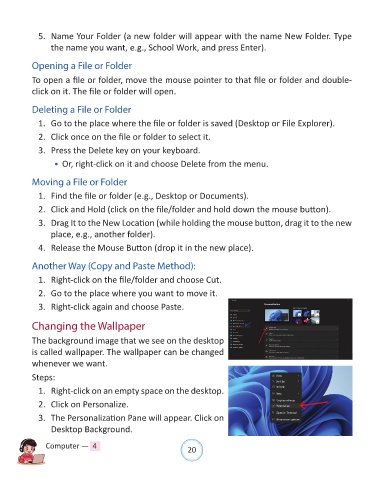
              1.  Right-click on an empty space on the desktop.

              2.  Click on Personalize.

              3.  The Personalization Pane will appear. Click on
                  Desktop Background.


                Computer —  4                                   20

