


Page 79 - Digital_Kids_4
P. 79
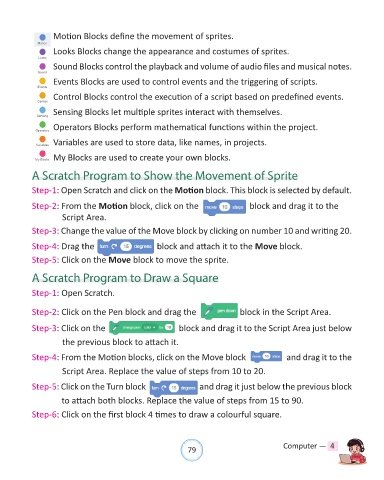
Motion Blocks define the movement of sprites.

                   Looks Blocks change the appearance and costumes of sprites.


                   Sound Blocks control the playback and volume of audio files and musical notes.

                   Events Blocks are used to control events and the triggering of scripts.

                   Control Blocks control the execution of a script based on predefined events.

                   Sensing Blocks let multiple sprites interact with themselves.

                   Operators Blocks perform mathematical functions within the project.


                   Variables are used to store data, like names, in projects.

                   My Blocks are used to create your own blocks.

            A Scratch Program to Show the Movement of Sprite


              Step-1: Open Scratch and click on the Motion block. This block is selected by default.

            Step-2: From the Motion block, click on the                               block and drag it to the
                    Script Area.

            Step-3: Change the value of the Move block by clicking on number 10 and writing 20.

            Step-4: Drag the                          block and attach it to the Move block.

            Step-5: Click on the Move block to move the sprite.


            A Scratch Program to Draw a Square

            Step-1: Open Scratch.


            Step-2: Click on the Pen block and drag the                           block in the Script Area.


            Step-3: Click on the                              block and drag it to the Script Area just below

                       the previous block to attach it.

            Step-4: From the Motion blocks, click on the Move block                               and drag it to the

                       Script Area. Replace the value of steps from 10 to 20.

            Step-5: Click on the Turn block                         and drag it just below the previous block

                      to attach both blocks. Replace the value of steps from 15 to 90.

            Step-6: Click on the first block 4 times to draw a colourful square.


                                                                79                               Computer —  4

