


Page 18 - Digital_Kids_5
P. 18
•  Click  the  Task  View  button:  It  looks  like  two
                  overlapping  squares  on  your  taskbar,  located

                  next to the Start menu.
              •  Select "New desktop": In the Task View pane, you               Unlike previous  versions  where
                                                                                the  Start  menu  was  always  on
                  will see your current desktop and a small "+" sign            the left, the Windows 11 taskbar
                  at the bottom right. Click this to create a new,              and Start menu are centered by
                  blank virtual desktop.
                                                                                default, giving it a unique look.

            Task View

            In Windows 11, Task View is a feature that allows you to manage all your open windows
            and applications. By clicking the Task View button on the taskbar, you can see all your
            running programs at once. This feature also allows you to create multiple desktops, which

            is useful for organizing different sets of applications for specific tasks. For example, you
            can have one desktop for and focused.


            Widget Panel

            The Widgets panel in Windows 11 replaces the Live Tiles from
            Windows 10. It is a new feature that provides a personalized
            feed of information at glance, including news, weather, your
            calendar. It's designed to give you quick updates and a more

            curated experience than the older dynamic tiles.


            Pinning Apps
            Pinning to the Start Menu

              1.  Open the Start menu by clicking the Windows icon.

              2.  Click All apps in the top-right corner of the Start menu.
              3.  Right-click on the app you want to pin.

              4.  From the drop-down menu, select Pin to Start.


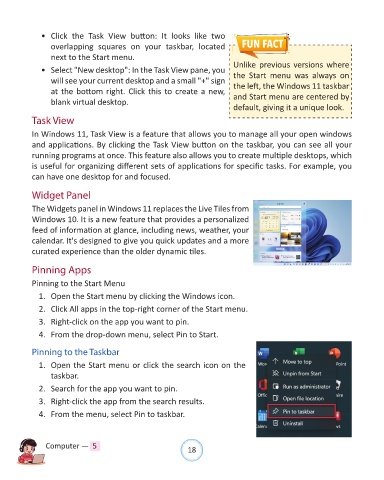
            Pinning to the Taskbar

              1.  Open the Start menu or click the search icon on the
                  taskbar.

              2.  Search for the app you want to pin.
              3.  Right-click the app from the search results.

              4.  From the menu, select Pin to taskbar.


                Computer —  5                                   18

