


Page 21 - Digital_Kids_5
P. 21
background,  an  accent  color,  a  sound
            scheme, a mouse cursor and a light or dark

            mode
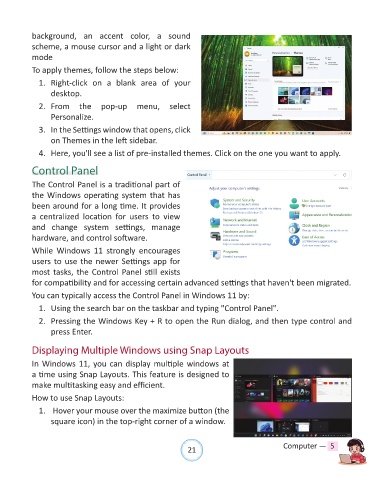
            To apply themes, follow the steps below:

              1.  Right-click  on  a  blank  area  of  your
                  desktop.

              2.  From  the  pop-up  menu,  select
                  Personalize.

              3.  In the Settings window that opens, click
                  on Themes in the left sidebar.

              4.  Here, you'll see a list of pre-installed themes. Click on the one you want to apply.

            Control Panel


            The Control Panel is a traditional part of
            the Windows operating system that has
            been around for a long time. It provides
            a  centralized  location  for  users  to  view

            and  change  system  settings,  manage
            hardware, and control software.

            While  Windows  11  strongly  encourages
            users to use the newer Settings app for
            most tasks, the Control Panel still exists
            for compatibility and for accessing certain advanced settings that haven't been migrated.

            You can typically access the Control Panel in Windows 11 by:

              1.  Using the search bar on the taskbar and typing "Control Panel".
              2.  Pressing the Windows Key + R to open the Run dialog, and then type control and

                  press Enter.

            Displaying Multiple Windows using Snap Layouts

            In Windows 11, you can display multiple windows at

            a time using Snap Layouts. This feature is designed to
            make multitasking easy and efficient.

            How to use Snap Layouts:
              1.   Hover your mouse over the maximize button (the

                  square icon) in the top-right corner of a window.


                                                                21                               Computer —  5

