


Page 91 - Digital_Kids_5
P. 91
3.  Select Blank Presentation or a template.

              4.  Click Create.

              5.  Add your content to the slides.
              6.  Save the presentation with a name.


            Theme

            A  Theme  is  a  predefined  set  of  design  choices  that  gives  your  entire  presentation  a
            consistent and a professional look. It's like a "design package" that applies a unified style

            to your slides with a single click.
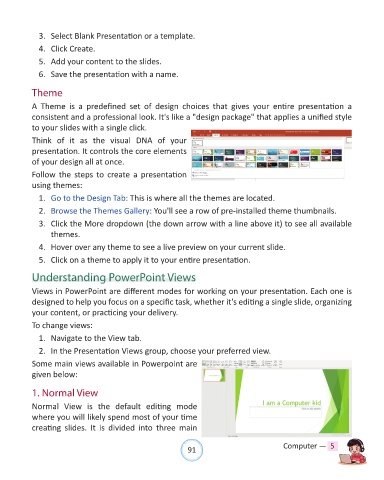
            Think  of  it  as  the  visual  DNA  of  your
            presentation. It controls the core elements

            of your design all at once.

            Follow the steps to create a presentation
            using themes:
              1.  Go to the Design Tab: This is where all the themes are located.

              2.  Browse the Themes Gallery: You'll see a row of pre-installed theme thumbnails.

              3.  Click the More dropdown (the down arrow with a line above it) to see all available
                  themes.

              4.  Hover over any theme to see a live preview on your current slide.

              5.  Click on a theme to apply it to your entire presentation.

            Understanding PowerPoint Views

            Views in PowerPoint are different modes for working on your presentation. Each one is
            designed to help you focus on a specific task, whether it's editing a single slide, organizing

            your content, or practicing your delivery.
            To change views:

              1.  Navigate to the View tab.

              2.  In the Presentation Views group, choose your preferred view.
            Some main views available in Powerpoint are

            given below:


            1. Normal View
            Normal  View  is  the  default  editing  mode

            where you will likely spend most of your time
            creating  slides.  It  is  divided  into  three  main


                                                                91                               Computer —  5

