


Page 93 - Digital_Kids_5
P. 93
your animations and transitions without switching to the
            full presenter mode. It is ideal for quickly reviewing your

            presentation on your own screen or showing it to someone
            else in a more casual, windowed environment.


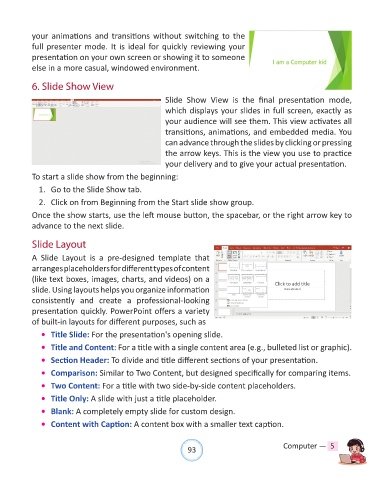
            6. Slide Show View

                                                         Slide  Show  View  is  the  final  presentation  mode,
                                                         which displays your slides in full screen, exactly as
                                                         your audience will see them. This view activates all
                                                         transitions, animations, and embedded media. You

                                                         can advance through the slides by clicking or pressing
                                                         the arrow keys. This is the view you use to practice
                                                         your delivery and to give your actual presentation.

            To start a slide show from the beginning:

              1.  Go to the Slide Show tab.
              2.  Click on from Beginning from the Start slide show group.

            Once the show starts, use the left mouse button, the spacebar, or the right arrow key to
            advance to the next slide.


            Slide Layout

            A  Slide  Layout  is  a  pre-designed  template  that
            arranges placeholders for different types of content

            (like text boxes, images, charts, and videos) on a
            slide. Using layouts helps you organize information
            consistently  and  create  a  professional-looking
            presentation quickly. PowerPoint offers a variety
            of built-in layouts for different purposes, such as

              •  Title Slide: For the presentation's opening slide.

              •  Title and Content: For a title with a single content area (e.g., bulleted list or graphic).

              •  Section Header: To divide and title different sections of your presentation.
              •  Comparison: Similar to Two Content, but designed specifically for comparing items.

              •  Two Content: For a title with two side-by-side content placeholders.

              •  Title Only: A slide with just a title placeholder.
              •  Blank: A completely empty slide for custom design.

              •  Content with Caption: A content box with a smaller text caption.


                                                                93                               Computer —  5

