


Page 92 - Digital_Kids_5
P. 92
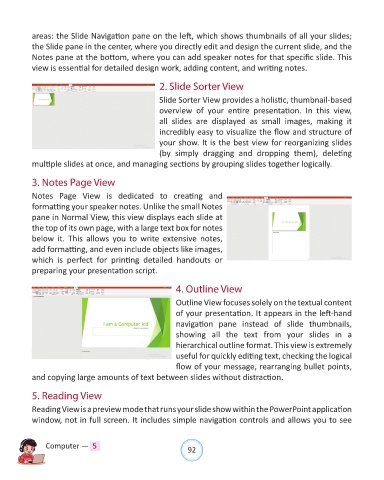
areas: the Slide Navigation pane on the left, which shows thumbnails of all your slides;
            the Slide pane in the center, where you directly edit and design the current slide, and the

            Notes pane at the bottom, where you can add speaker notes for that specific slide. This
            view is essential for detailed design work, adding content, and writing notes.


                                                       2. Slide Sorter View

                                                       Slide Sorter View provides a holistic, thumbnail-based
                                                       overview  of  your  entire  presentation.  In  this  view,
                                                       all  slides  are  displayed  as  small  images,  making  it
                                                       incredibly easy to visualize the flow and structure of

                                                       your show. It is the best view for reorganizing slides
                                                       (by  simply  dragging  and  dropping  them),  deleting
            multiple slides at once, and managing sections by grouping slides together logically.


            3. Notes Page View

            Notes  Page  View  is  dedicated  to  creating  and
            formatting your speaker notes. Unlike the small Notes
            pane in Normal View, this view displays each slide at

            the top of its own page, with a large text box for notes
            below  it.  This  allows  you  to  write  extensive  notes,
            add formatting, and even include objects like images,

            which  is  perfect  for  printing  detailed  handouts  or
            preparing your presentation script.


                                                            4. Outline View
                                                            Outline View focuses solely on the textual content

                                                            of your presentation. It appears in the left-hand
                                                            navigation  pane  instead  of  slide  thumbnails,
                                                            showing  all  the  text  from  your  slides  in  a

                                                            hierarchical outline format. This view is extremely
                                                            useful for quickly editing text, checking the logical
                                                            flow of your message, rearranging bullet points,
            and copying large amounts of text between slides without distraction.


            5. Reading View

            Reading View is a preview mode that runs your slide show within the PowerPoint application
            window, not in full screen. It includes simple navigation controls and allows you to see


                Computer —  5                                   92

