


Page 62 - Digital_Kids_5
P. 62
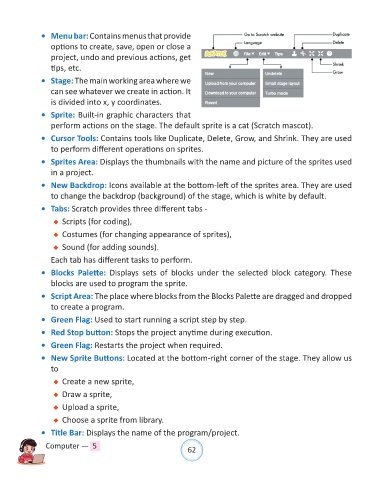
•  Menu bar: Contains menus that provide
                  options to create, save, open or close a

                  project, undo and previous actions, get
                  tips, etc.

              •  Stage: The main working area where we
                  can see whatever we create in action. It
                  is divided into x, y coordinates.

              •  Sprite: Built-in graphic characters that
                  perform actions on the stage. The default sprite is a cat (Scratch mascot).

              •  Cursor Tools: Contains tools like Duplicate, Delete, Grow, and Shrink. They are used
                  to perform different operations on sprites.

              •  Sprites Area: Displays the thumbnails with the name and picture of the sprites used
                  in a project.

              •  New Backdrop: Icons available at the bottom-left of the sprites area. They are used
                  to change the backdrop (background) of the stage, which is white by default.

              •  Tabs: Scratch provides three different tabs -
                   u  Scripts (for coding),

                   u  Costumes (for changing appearance of sprites),

                   u  Sound (for adding sounds).

                  Each tab has different tasks to perform.
              •  Blocks  Palette:  Displays  sets  of  blocks  under  the  selected  block  category.  These
                  blocks are used to program the sprite.

              •  Script Area: The place where blocks from the Blocks Palette are dragged and dropped
                  to create a program.

              •  Green Flag: Used to start running a script step by step.

              •  Red Stop button: Stops the project anytime during execution.

              •  Green Flag: Restarts the project when required.
              •  New Sprite Buttons: Located at the bottom-right corner of the stage. They allow us
                  to

                   u  Create a new sprite,

                   u  Draw a sprite,
                   u  Upload a sprite,

                   u  Choose a sprite from library.

              •  Title Bar: Displays the name of the program/project.

                Computer —  5                                   62

