


Page 65 - Digital_Kids_5
P. 65
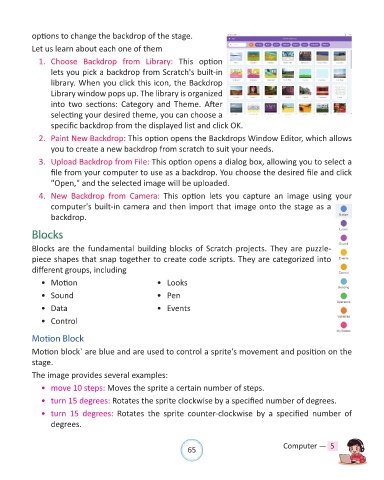
options to change the backdrop of the stage.

            Let us learn about each one of them

              1.  Choose  Backdrop  from  Library:  This  option
                  lets you pick a backdrop from Scratch's built-in
                  library. When you click this icon, the Backdrop
                  Library window pops up. The library is organized

                  into  two  sections:  Category  and  Theme.  After
                  selecting your desired theme, you can choose a
                  specific backdrop from the displayed list and click OK.

              2.  Paint New Backdrop: This option opens the Backdrops Window Editor, which allows
                  you to create a new backdrop from scratch to suit your needs.

              3.  Upload Backdrop from File: This option opens a dialog box, allowing you to select a
                  file from your computer to use as a backdrop. You choose the desired file and click
                  "Open," and the selected image will be uploaded.

              4.  New  Backdrop  from  Camera:  This  option  lets  you  capture  an  image  using  your
                  computer's built-in camera and then import that image onto the stage as a
                  backdrop.


            Blocks

            Blocks are the fundamental building blocks of Scratch projects. They are puzzle-
            piece shapes that snap together to create code scripts. They are categorized into

            different groups, including
              •  Motion                               •  Looks

              •  Sound                                •  Pen

              •  Data                                 •  Events
              •  Control


            Motion Block

            Motion block` are blue and are used to control a sprite's movement and position on the
            stage.

            The image provides several examples:
              •  move 10 steps: Moves the sprite a certain number of steps.

              •  turn 15 degrees: Rotates the sprite clockwise by a specified number of degrees.

              •  turn  15  degrees:  Rotates  the  sprite  counter-clockwise  by  a  specified  number  of
                  degrees.


                                                                65                               Computer —  5

