


Page 94 - Digital_Kids_5
P. 94
•  Picture with Caption: A large image placeholder with a caption text box.


            Applying a Silde Layout

            To change the layout of an existing slide, follow these steps:
              1.  Select the slide you wish to modify by clicking on it in the thumbnail pane.

              2.  Go to the Home tab on the ribbon.

              3.  In the Slides group, click the Layout button.

              4.  A menu of available layouts will appear. Select your desired layout from this list.
              5.  The selected slide will immediately update to the new layout.


            Comments in PowerPoint

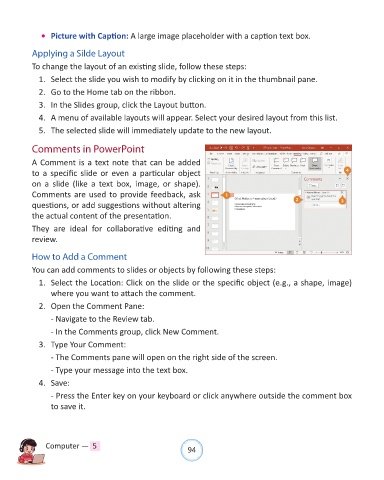
            A Comment is a text note that can be added
            to a specific slide or even a particular object
            on  a  slide  (like  a  text  box,  image,  or  shape).

            Comments are used to provide feedback, ask
            questions, or add suggestions without altering
            the actual content of the presentation.

            They  are  ideal  for  collaborative  editing  and
            review.


            How to Add a Comment

            You can add comments to slides or objects by following these steps:
              1.  Select the Location: Click on the slide or the specific object (e.g., a shape, image)
                  where you want to attach the comment.

              2.  Open the Comment Pane:

                  - Navigate to the Review tab.

                  - In the Comments group, click New Comment.
              3.  Type Your Comment:

                  - The Comments pane will open on the right side of the screen.

                  - Type your message into the text box.
              4.  Save:

                  - Press the Enter key on your keyboard or click anywhere outside the comment box
                  to save it.


                Computer —  5                                   94

