


Page 30 - Digital_Kids_5
P. 30
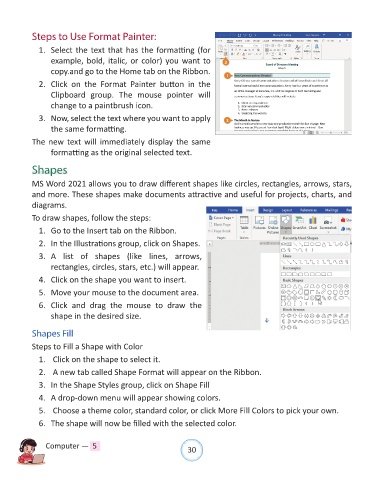
Steps to Use Format Painter:

              1.  Select the text that has the formatting (for

                  example, bold, italic, or color) you want to
                  copy.and go to the Home tab on the Ribbon.
              2.  Click  on  the  Format  Painter  button  in  the

                  Clipboard  group.  The  mouse  pointer  will
                  change to a paintbrush icon.

              3.  Now, select the text where you want to apply
                  the same formatting.

            The new text will immediately display the same
                  formatting as the original selected text.

            Shapes

            MS Word 2021 allows you to draw different shapes like circles, rectangles, arrows, stars,

            and more. These shapes make documents attractive and useful for projects, charts, and
            diagrams.

            To draw shapes, follow the steps:
              1.  Go to the Insert tab on the Ribbon.

              2.  In the Illustrations group, click on Shapes.

              3.  A  list  of  shapes  (like  lines,  arrows,
                  rectangles, circles, stars, etc.) will appear.

              4.  Click on the shape you want to insert.
              5.  Move your mouse to the document area.

              6.  Click  and  drag  the  mouse  to  draw  the
                  shape in the desired size.


            Shapes Fill

            Steps to Fill a Shape with Color
              1.   Click on the shape to select it.

              2.   A new tab called Shape Format will appear on the Ribbon.

              3.  In the Shape Styles group, click on Shape Fill

              4.  A drop-down menu will appear showing colors.
              5.   Choose a theme color, standard color, or click More Fill Colors to pick your own.

              6.  The shape will now be filled with the selected color.


                Computer —  5                                   30

