


Page 34 - Digital_Kids_5
P. 34
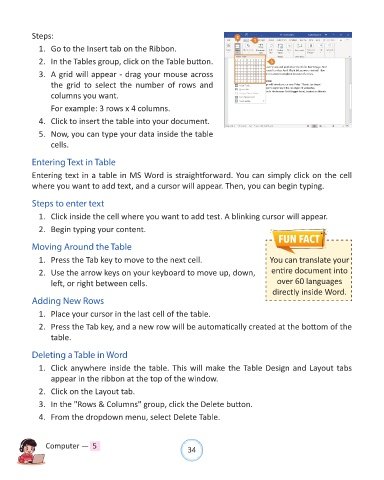
Steps:

              1.  Go to the Insert tab on the Ribbon.

              2.  In the Tables group, click on the Table button.
              3.  A grid will appear - drag your mouse across

                  the  grid  to  select  the  number  of  rows  and
                  columns you want.

                  For example: 3 rows x 4 columns.
              4.  Click to insert the table into your document.

              5.  Now, you can type your data inside the table
                  cells.


            Entering Text in Table

            Entering text in a table in MS Word is straightforward. You can simply click on the cell
            where you want to add text, and a cursor will appear. Then, you can begin typing.


            Steps to enter text
              1.  Click inside the cell where you want to add test. A blinking cursor will appear.

              2.  Begin typing your content.


            Moving Around the Table

              1.  Press the Tab key to move to the next cell.                               You can translate your
              2.  Use the arrow keys on your keyboard to move up, down,                      entire document into
                  left, or right between cells.                                                over 60 languages
                                                                                             directly inside Word.
            Adding New Rows

              1.  Place your cursor in the last cell of the table.

              2.  Press the Tab key, and a new row will be automatically created at the bottom of the
                  table.


            Deleting a Table in Word
              1.  Click anywhere inside the table. This will make the Table Design and Layout tabs
                  appear in the ribbon at the top of the window.

              2.  Click on the Layout tab.

              3.  In the "Rows & Columns" group, click the Delete button.

              4.  From the dropdown menu, select Delete Table.


                Computer —  5                                   34

