


Page 37 - Digital_Kids_5
P. 37
Steps to Add Borders

              1.  Go to the Table Tools Design tab.

              2.  In the Borders group, you can click Borders dropdown.
              3.  Now choose options like All Borders, Outside Borders, Inside

                  Borders, Top, Bottom, Left, Right.

              4.  Choose Line Style, Line Weight, and Pen Color to customize the look of borders.
              5.  The selected cells of table will now display the chosen borders.


            Steps to Add Shading
              1.  Go to the Table Tools Design tab.

              2.  In the Table Styles group, click Shading.

              3.  Choose a color from:

                   •  Theme Colors (matches your document design)
                   •  Standard Colors

                   •  More Colors... (for custom shades)

              4.  The background color (shading) will be applied to the selected cells.

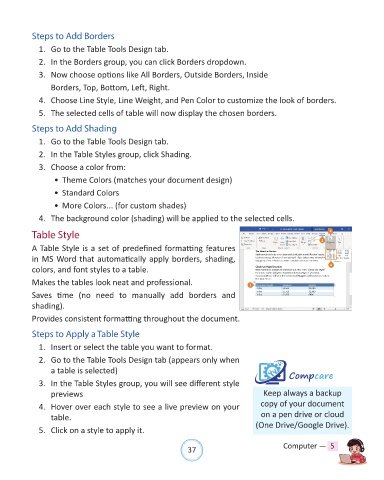
            Table Style

            A Table Style is a set of predefined formatting features
            in MS Word that automatically apply borders, shading,

            colors, and font styles to a table.
            Makes the tables look neat and professional.

            Saves  time  (no  need  to  manually  add  borders  and
            shading).

            Provides consistent formatting throughout the document.

            Steps to Apply a Table Style

              1.  Insert or select the table you want to format.

              2.  Go to the Table Tools Design tab (appears only when
                  a table is selected)

              3.  In the Table Styles group, you will see different style                          Compcare
                  previews                                                                Keep always a backup
              4.  Hover over each style to see a live preview on your                    copy of your document

                  table.                                                                 on a pen drive or cloud
              5.  Click on a style to apply it.                                        (One Drive/Google Drive).


                                                                37                               Computer —  5

