


Page 36 - Digital_Kids_5
P. 36
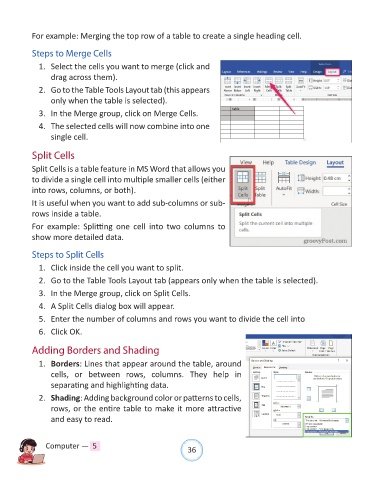
For example: Merging the top row of a table to create a single heading cell.


            Steps to Merge Cells

              1.  Select the cells you want to merge (click and
                  drag across them).

              2.  Go to the Table Tools Layout tab (this appears
                  only when the table is selected).

              3.  In the Merge group, click on Merge Cells.
              4.  The selected cells will now combine into one

                  single cell.

            Split Cells

            Split Cells is a table feature in MS Word that allows you
            to divide a single cell into multiple smaller cells (either

            into rows, columns, or both).

            It is useful when you want to add sub-columns or sub-
            rows inside a table.
            For  example:  Splitting  one  cell  into  two  columns  to

            show more detailed data.

            Steps to Split Cells

              1.  Click inside the cell you want to split.

              2.  Go to the Table Tools Layout tab (appears only when the table is selected).
              3.  In the Merge group, click on Split Cells.

              4.  A Split Cells dialog box will appear.

              5.  Enter the number of columns and rows you want to divide the cell into

              6.  Click OK.

            Adding Borders and Shading

              1.  Borders: Lines that appear around the table, around

                  cells,  or  between  rows,  columns.  They  help  in
                  separating and highlighting data.

              2.  Shading: Adding background color or patterns to cells,
                  rows, or the entire table to make it more attractive
                  and easy to read.


                Computer —  5                                   36

